
The SimRacing Den / ASR build planning
ASR monitor stands: integrated or freestanding?
Choose support around your screens, cockpit and room—with practical checks for VESA mounting, triples and motion clearance.
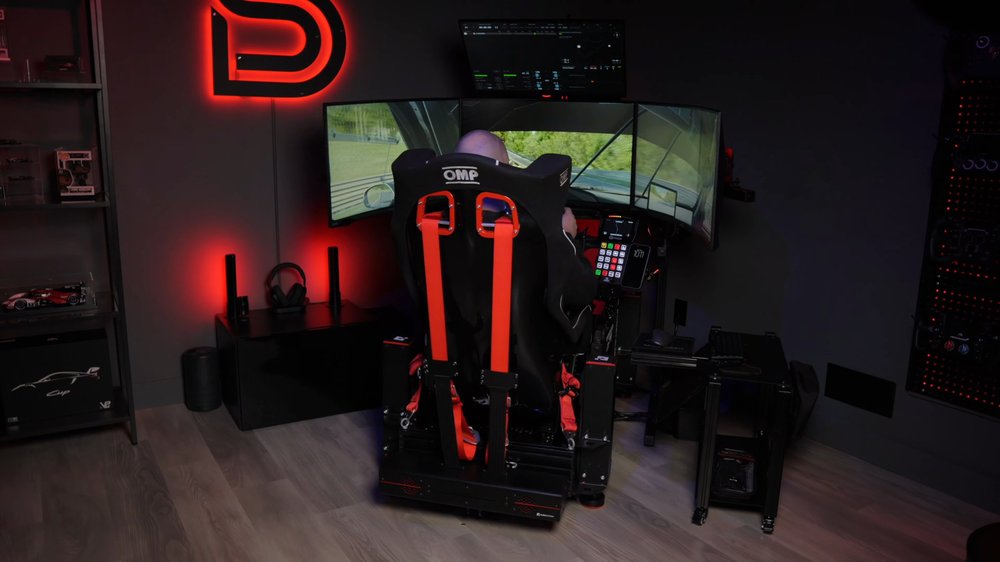
My ASR PRO Gen 2 chassis was provided by Advanced Sim Racing. Some links are affiliate links: I may earn a commission if you buy through them, at no extra cost to you. SRD5 applies to selected ASR products; it does not establish eligibility for every item shown.
Choose the screen arrangement first.
Start with the screens you intend to use: one monitor, one ultrawide or three displays. Then choose support that fits their weight, mounting pattern and position around the cockpit. The stand is part of the display geometry, so it belongs in the build plan before the last stage of assembly.
My published setup includes a freestanding ASR triple stand alongside LG 45-inch OLED monitors. That is one example of a large-screen arrangement. A smaller single-screen build has different needs and does not automatically need the same stand.
The quick decision: investigate an integrated stand for a compatible single-screen layout attached to the cockpit. Investigate a freestanding stand when you want separate screen positioning, a triple arrangement or a screen system independent of the chassis. Confirm the exact product’s limits and clearances.
Integrated vs freestanding: what changes?
| Decision | Integrated stand | Freestanding stand |
|---|---|---|
| Attachment | Mounts to the cockpit; check the compatible chassis and brackets. | Uses its own floor supports; plan where those legs fit around the cockpit. |
| Screen positioning | Available positions depend on the cockpit and mounting arrangement. | Position can be adjusted separately from the chassis, within the stand’s adjustment range. |
| Moving the cockpit | The attached screen assembly moves with the cockpit. | The cockpit and screens are separate assemblies to position and move. |
| Triples | A single-screen mount does not establish a supported triple upgrade. | Choose a specific triple model and verify its screen and mounting options. |
| Room planning | Check reach, wheelbase clearance and the complete attached envelope. | Include floor legs, side-screen wings, cable routes and access behind the panels. |
The right choice comes from the configuration, not from calling one style universally better. Draw the screen position you want relative to the seat and wheel before selecting the stand.
ASR stand names are worth reading carefully.
ASR’s Integrated Single Monitor Stand and Advanced Integrated Single Monitor Stand are different products. Their support structures and published compatibility notes differ. Use the listing for the exact stand rather than transferring a size limit from one name to the other.
The basic Integrated Single listing describes a 75/100 mm VESA plate and chassis-dependent screen guidance. Its notes distinguish ASR 1/3 installations from ASR 4/6 installations. An “up to” screen size is not a substitute for checking the specific panel and mount.
For larger triples, the stand in my setup is listed for up to 50-inch TVs or 45-inch ultrawide monitors, with different VESA mounting options. ASR also sells smaller 32-inch and 43-inch triple stands. Choose from the screen specification and the exact mounting option, not the appearance of the product photo.
Integrated Single Monitor Stand
A cockpit-mounted option. Confirm the exact chassis, screen and VESA requirements on this product’s listing.
View Integrated Single Monitor Stand ↗Freestanding Triple Stand · up to 32″
Compare the stand with the dimensions, weight and mounting arrangement of all three monitors.
View Freestanding Triple Stand · up to 32″ ↗Triple TV & Monitor Stand · up to 45″ ultrawide
Check Advanced VESA versus TV mounting options and include enough room for the full triple arrangement.
View Triple TV & Monitor Stand · up to 45″ ultrawide ↗Affiliate links open the specific stand products. Product names and mounting guidance checked October 17, 2026; verify the current variant before ordering.
Five checks before ordering a stand
- Screen identity and weight. Record the exact model number, weight without its desktop stand, width, height and curvature. Two monitors with the same advertised diagonal can have different mounting and clearance needs.
- VESA interface. Check the hole spacing, recessed mounting area, required screws and any spacers. A matching hole pattern alone does not show that a plate can sit flush on the rear housing.
- Eye-to-screen position. Plan the seat, wheelbase and display together. Check that the screen can reach the desired position without contacting the base, wheel, hands or cockpit.
- Occupied room space. Include the stand’s floor supports and the angled side-screen width. Leave room to enter the seat and reach the back of the monitors.
- Adjustment and access. Check how you will align the panels and reach the fasteners. Add any suitable micro-adjustment plates or adapters to the basket when required.
Manufacturer guidance should settle model-specific questions. If the current help article and product page describe different configurations, get confirmation for your exact combination before ordering.
Plan motion and cable clearance separately.
When a cockpit moves relative to freestanding screens, the gap between the two assemblies can change. An integrated screen system has a different movement relationship because it is attached to the cockpit. Neither arrangement should be assumed safe or approved for a motion system from the mounting style alone.
Check the motion manufacturer’s instructions for the full movement envelope, additional load and mounting requirements. Include cable slack, connectors and screen clearance at the travel extremes. A gap that looks adequate with the rig stationary can disappear when the platform moves.
Freestanding screens avoid a direct chassis-to-stand attachment, but that is not a guarantee that all vibration disappears. The floor and nearby structures remain part of the installation. See the motion planning guide for the wider installation checks.
Set the geometry after the hardware position is settled.
Once the seat and screens are in their intended positions, measure the real viewing distance and screen arrangement. Use those dimensions in the FOV calculator and the settings supported by your simulator.
For triples, align the panels physically before using software to compensate for the arrangement. Side-screen angle, bezel treatment and the position of your eyes should describe the same setup in the room and in the simulator. A stand purchase by itself does not set the correct field of view.
Screen count and resolution also affect the PC you need. Use the monitor configuration guide and PC planning guide before committing the whole budget to displays and their stand.
Build one complete screen-support basket.
Include the stand, the correct VESA option, monitor-specific screws, required spacers or adapters, and the cables needed to reach the PC. Check what is already included in your selected package so you do not order the same part twice.
If starting with a single screen and planning triples later, check the exact model’s supported upgrade path now. An upgrade kit offered for one stand does not establish compatibility with another version.
Use SRD5 for 5% off selected ASR products. Confirm which items qualify and check the saving in the order summary; the code does not promise a discount on every monitor or third-party item sold by ASR.